
 By Tommy Lee
On Tuesday, November 10, Anthropic, the company that makes Claude, announced a new tool called Claude Meetings. It started rolling out two days later.
What it does
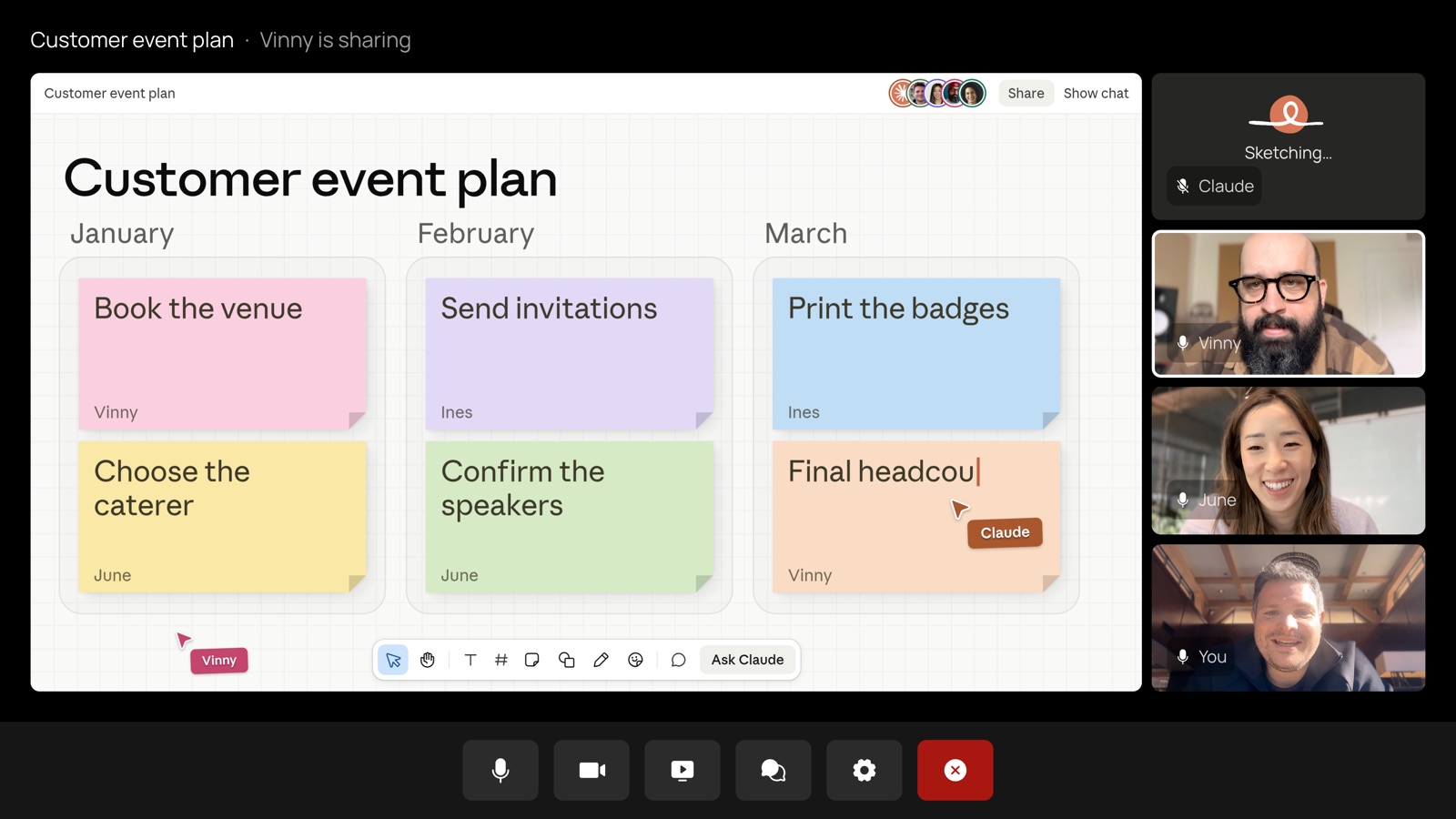
Claude Meetings lets you bring Claude into a video call. It joins the meeting like any other person, and it posts a note in the chat so everyone knows it’s there. Then it follows the conversation and starts working while you talk. If your team is planning something, it can start drafting the plan or put the dates on a timeline on a whiteboard. You can ask it a question out loud or type it in the chat, and it answers in writing.
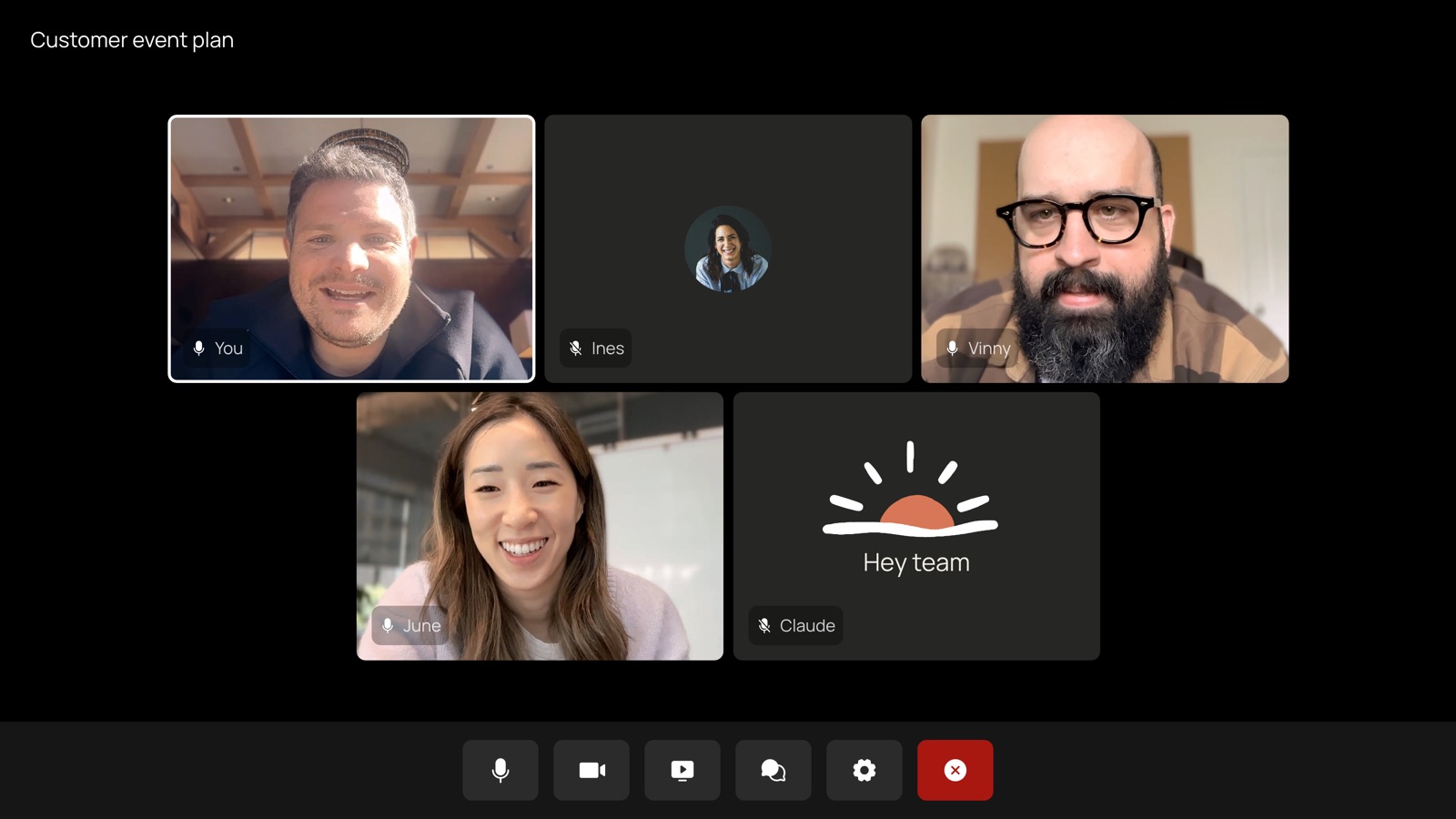
Anthropic gave an example of a team planning a customer event. In the middle of the call, they ask Claude what the event cost last year and how that compares to this year’s plan, and nobody has to stop the meeting to go dig through old files. The whiteboards come from Claude Whiteboards, a new tool Anthropic released that same week along with Claude Sheets, and it works right inside a meeting.
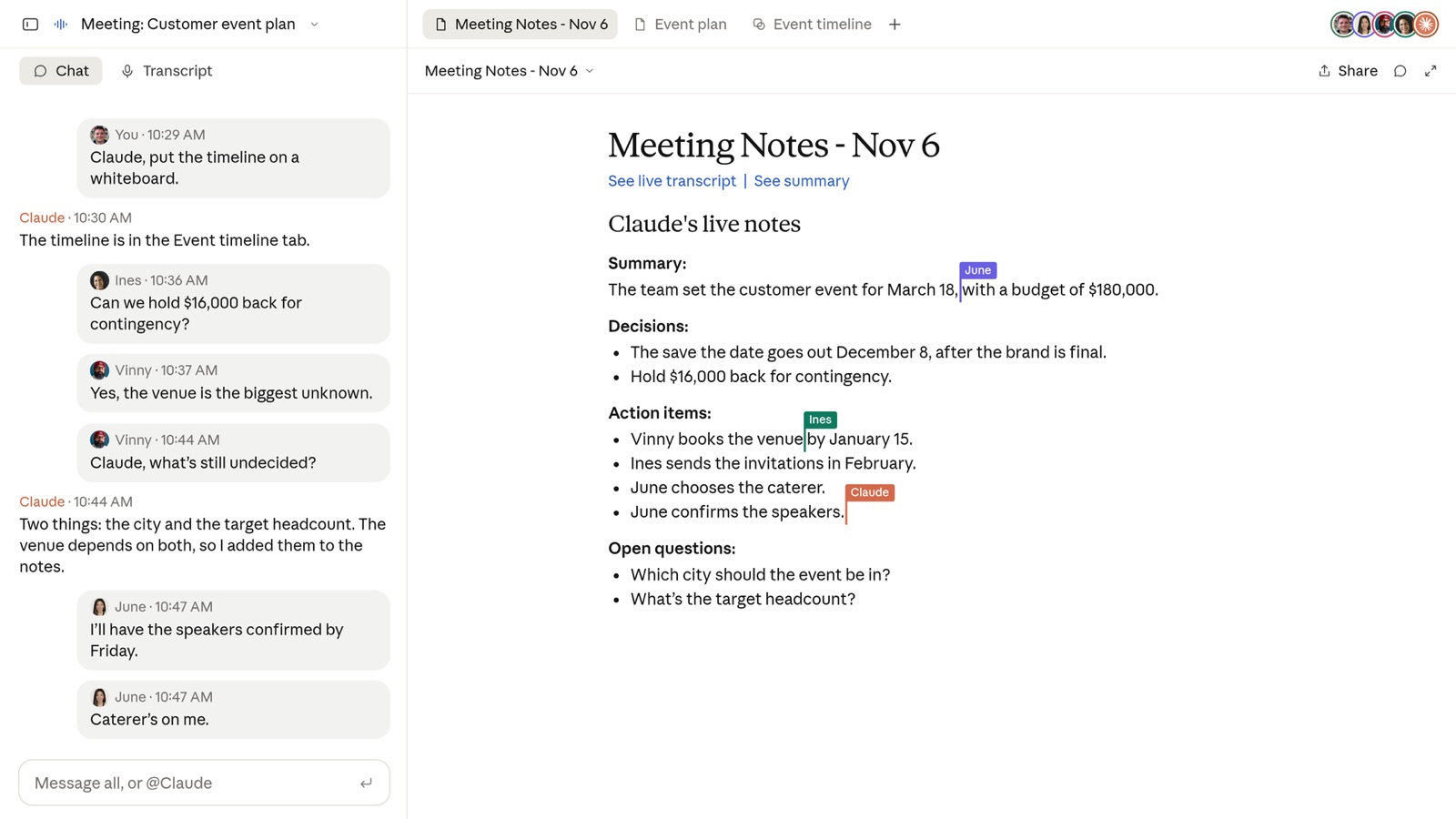
When the meeting is over, it gets its own page in Claude with the notes, the transcript and anything Claude made during the call. So you can come back a week later and ask Claude what was decided.
Who can use it
Note: Right now Claude Meetings only works with Google Meet. It doesn’t work with Zoom yet. Anthropic says other video platforms are coming soon.
It’s in beta, which means they are still testing it. It’s only for the Team and Enterprise plans, not the free or Pro plans.
On those plans, the notes, transcripts and answers are included, though answers that pull from your other apps count toward your plan’s usage. The documents and whiteboards it makes are free through February 10, 2027, and Anthropic hasn’t said what they will cost after that.
How to use it
- Turn it on. If your organization is on Enterprise, an owner has to turn on Claude Meetings first. On Team plans it’s already on. Either way, an owner also has to allow Google Calendar for your organization.
- Connect your calendar. Go to Meetings in Claude (claude.ai/meetings) and connect your Google Calendar.
- Invite Claude to a meeting. On the Meetings page, pick a meeting from your calendar and click “Add Claude.” If you want it in every call, go to Settings, then Capabilities, then Meetings, and turn on Auto join. You can have it join all of your meetings, or all of them except your one on ones.
- Talk to it during the call. Say “Claude” and then your question, like “Claude, what did we spend on this last year?” or type it in the Meet chat. You can also say “Claude, make a doc” or “Claude, make a whiteboard.” If you want it to stop listening for a while, just ask, and if you want it gone, ask it to leave.
- Always check its work after the call. Don’t skip this one. A lot of us forward meeting notes to the team as the final word, so a wrong action item turns into a wrong assignment for someone. Open the meeting page from the link Claude posts in the chat, read the notes and action items, and fix anything it got wrong.